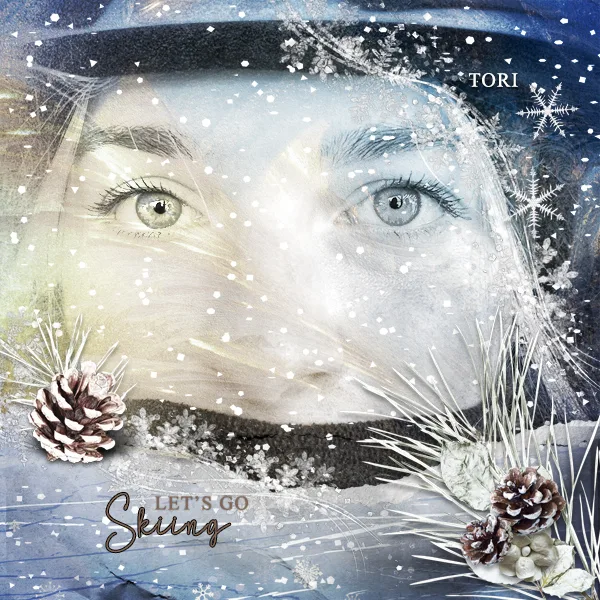

Digital Scrapbooking: Your Guide to Tools, Kits & Creative Workflows
Creative memory keeping with digital papers, elements and textures.


- What Is Digital Scrapbooking?
- Digital vs Traditional Scrapbooking
- Tools & Software for Digital Scrapbooking
- File Formats, Sizes & Printing for Digital Scrapbooking
- Tutorials & Step-by-Step Guides
- Digital Scrapbooking Kits, Papers & Elements
- Ideas & Inspiration for Digital Scrapbooking
- FAQ & Common Mistakes
Digital scrapbooking gives scattered digital photos a place to live beyond phones, hard drives or cloud storage – turning captured moments into preserved stories you can return to, reflect on and pass on.
It is a creative form of memory keeping that uses digital papers, textures and layered design elements instead of physical materials. Photos, papers and decorative elements are combined digitally, allowing you to create scrapbook pages without scissors, glue or physical clutter.
This approach offers both flexibility and creative freedom. Digital scrapbook pages can be built using layered files, photo masks, textured papers and digital elements in graphic design programs that support layers. Whether you enjoy working freely or starting with templates, digital scrapbooking adapts to different creative workflows and personal styles.
What Is Digital Scrapbooking?
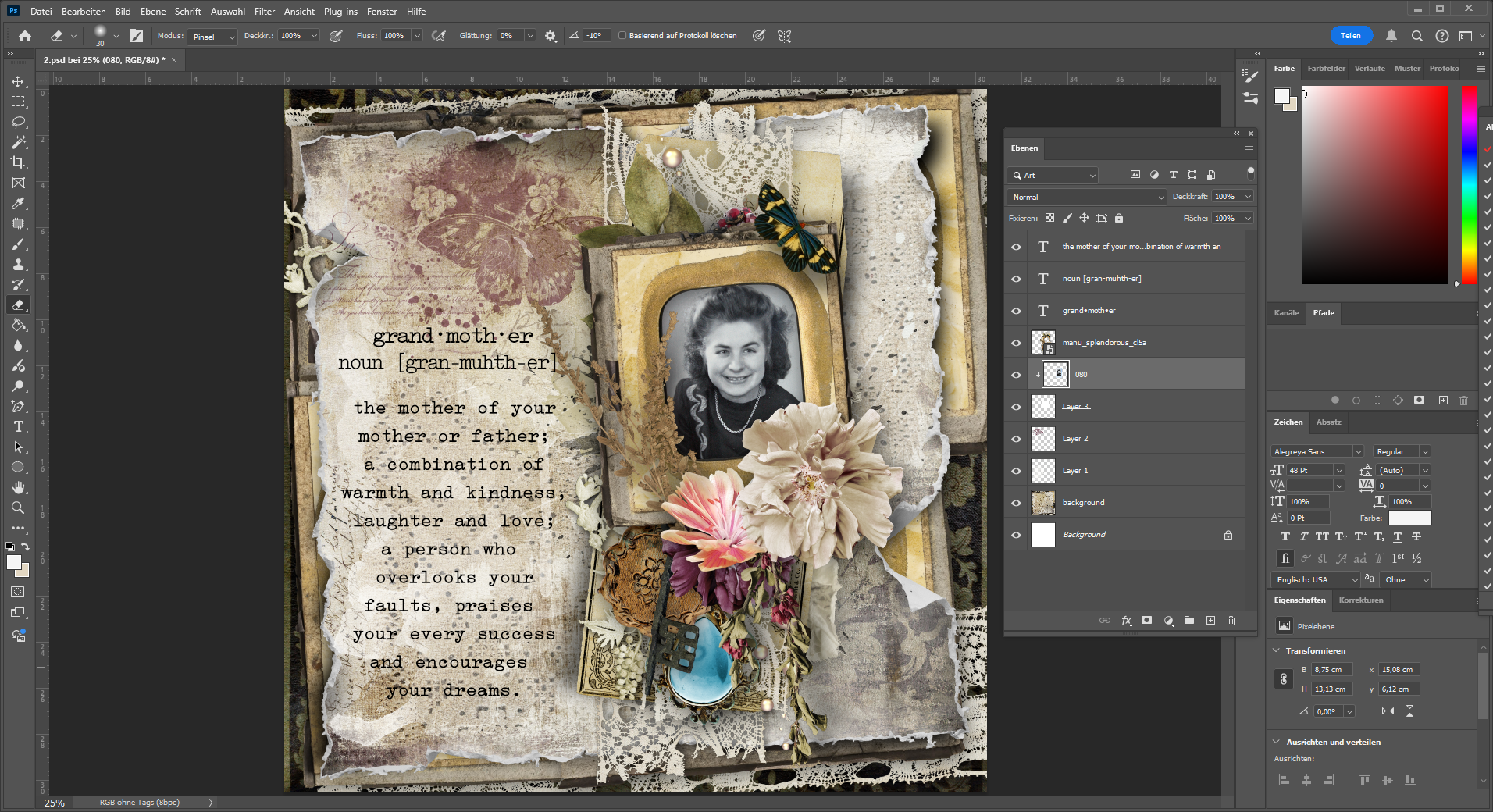
Digital scrapbooking is the process of designing scrapbook pages using digital files instead of physical paper, tools and adhesives. Projects are created with graphic design or editing software and are stored as digital documents that can be shared online or printed professionally.
From a technical perspective, digital scrapbooking is based on layered design, high-resolution image files and print-ready document settings. Elements such as backgrounds, embellishments, photos and text are combined on a digital canvas using specific file formats, color modes and DPI settings to ensure consistent quality across screens and print outputs.
Key Technical Characteristics
- Uses layer-based files (e.g. PSD, TIF) for flexible editing
- Works with raster graphics (PNG, JPG)
- Requires 300 DPI for high-quality print results
- Common color spaces: RGB for digital use, CMYK for professional printing
- Final exports are typically PDF or JPG files, depending on the print method
Digital scrapbooking allows full control over layout, scaling and color accuracy, making it ideal for repeatable designs such as printable planners, albums and memory-keeping projects.
Digital vs Traditional Scrapbooking
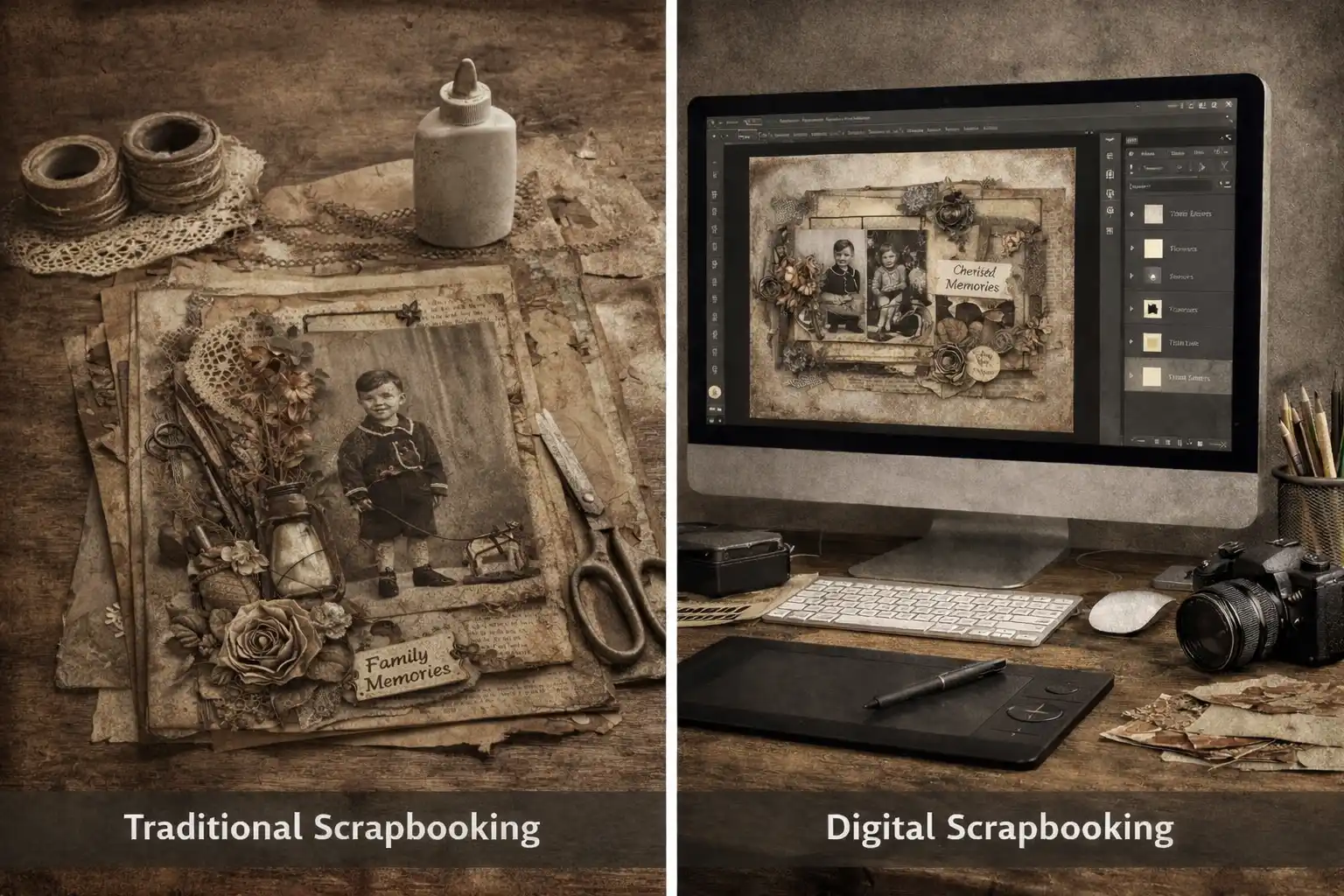
Digital and traditional scrapbooking differ mainly in workflow, tools, flexibility and output, even though both aim to preserve memories in a creative way.
Traditional scrapbooking is a physical, hands-on process using paper, photos, glue, and embellishments. Digital scrapbooking, in contrast, is created entirely on a computer using software, layered design files, and digital elements. The finished scrapbook page can later be printed or added to a digital photobook, which can be produced and shipped by an online print service.
Traditional Scrapbooking (Physical Method)
- Uses paper, scissors, glue and physical albums
- Each page is unique and non-reproducible
- Changes are permanent once elements are glued
- Requires storage space for materials and finished albums
- Final result exists only as a physical product
- Scanning is required for digital backups or sharing
Digital Scrapbooking (Digital Method)
- Created with software and layered design files
- Uses PNG and JPG elements or papers, with PSD or TIFF files for working with layered designs.
- Layouts are fully editable and reusable
- No physical storage required
- Easy to resize, recolor and duplicate designs
- Can be shared digitally or exported as print-ready files
Key Technical Differences at a Glance
- Editing: non-reversible vs fully non-destructive
- Output: physical only vs digital + print
- Flexibility: fixed layout vs adjustable layers
- Reusability: one-time pages vs reusable templates
- Backup: manual scanning vs built-in digital storage
Tools & Software for Digital Scrapbooking
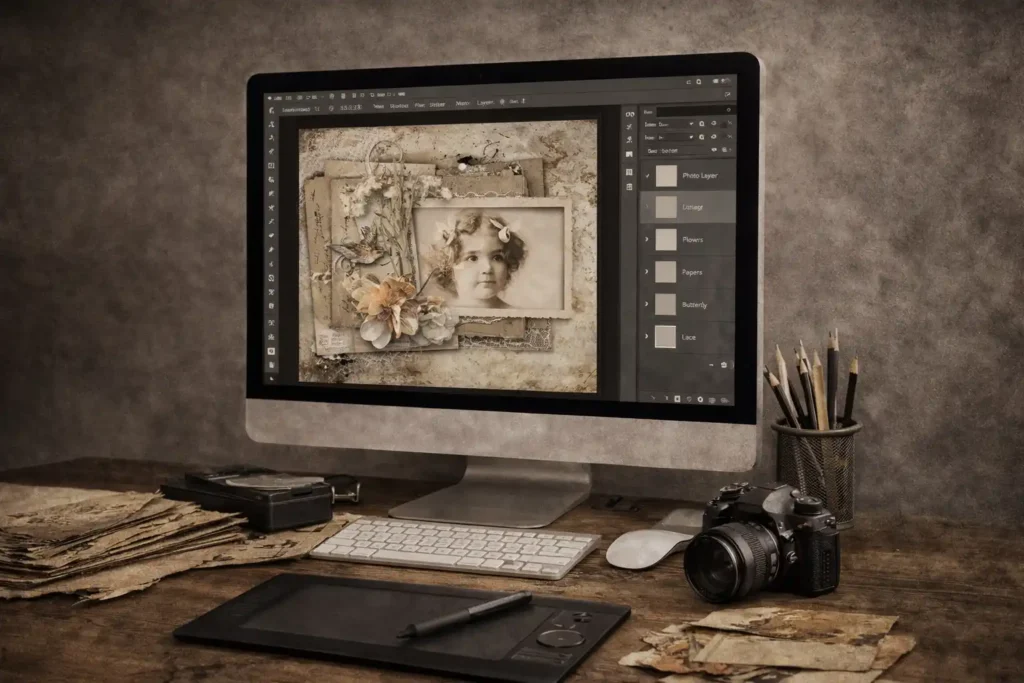
Digital scrapbooking requires a combination of design software, compatible file formats and optional hardware to create layered, print-ready scrapbook pages. Unlike traditional scrapbooking, all creative steps are performed digitally, allowing full control over layout, colors and revisions.
1. Software for Digital Scrapbooking
Digital scrapbooking is typically created using raster-based, layer-capable software. These programs allow users to stack papers, photos, textures and embellishments in separate layers.
Common software characteristics:
- Layer-based editing (non-destructive workflow)
- Support for PNG, JPG, PSD and TIFF files
- Ability to export print-ready PDF or JPG files
- Precise control over size, resolution and color
Typical use cases:
- Building full scrapbook pages
- Creating reusable templates
- Adjusting colors and textures for vintage or distressed styles
Popular Software for Digital Scrapbooking
Digital scrapbooking does not require specialized scrapbooking software. Most creators use professional, consumer-grade, or online graphic design tools that support layers and high-resolution files.
Commonly used programs include:
- Adobe Photoshop – industry standard for layer-based digital scrapbooking
- Adobe Photoshop Elements – beginner-friendly version with essential features
- Affinity Photo – powerful one-time purchase alternative to Adobe software
- PaintShop Pro – Windows-based graphic editor with strong layer support
- GIMP – a powerful and completely free alternative to Photoshop
- Canva – an online platform suitable for simple layouts and beginner projects
These programs allow users to work with digital papers, elements, photos, and textures while maintaining control over layout size, resolution, and export settings.
While tools like Photoshop, Affinity Photo, PaintShop Pro, and GIMP are best suited for complex, layered scrapbook designs, Canva can be a starting point for beginners who prefer browser-based tools and ready-made layouts.
Beginners typically choose software based on budget, learning curve, operating system, and long-term flexibility.
2. File Types & Digital Elements
Digital scrapbooking relies on different file types, each serving a specific technical purpose within the design process.
- PNG files: elements, embellishments, and word art with transparent backgrounds
- JPG files: photos and background papers
- PSD / TIFF files: layered layouts and templates for non-destructive editing
- PDF files: final export format for printing or professional print services
This structured use of file types allows maximum flexibility while keeping projects organized and print-ready.
3. Hardware (Optional but Helpful)
While digital scrapbooking can be done with a mouse and keyboard, certain hardware can improve precision and comfort:
- Graphics tablet or pen display for detailed placement
- Calibrated monitor for accurate color preview
- External storage for large design files and backups
Hardware is supportive – not mandatory – and depends on workflow preferences.
4. Output Options
Digital scrapbook pages can be used in multiple ways:
- Printed at home
- Sent to a professional print service
- Added to a digital photobook
- Stored or shared as digital files
The same design can be reused, resized or reprinted without quality loss.
Digital scrapbooking combines creative freedom with technical precision, making it ideal for memory keeping, printable planners and repeatable scrapbook layouts.
File Formats, Sizes & Printing for Digital Scrapbooking
Creating a beautiful digital scrapbook page is only the first step. To achieve high-quality results—especially for professional printing—file formats, document size, resolution, and color settings must be set up correctly from the start.
This section explains how to prepare digital scrapbook pages for home printing, professional print services, and digital photobooks without quality loss or unexpected results.
Common File Formats for Printing
When preparing digital scrapbook pages for printing, choosing the correct file format is essential. Different formats affect print quality, file size and compatibility with home printers and professional print services.
PDF (Portable Document Format)
PDF files are the preferred format for printing because they preserve layout, fonts, and sizing across different devices and print services.
- Preferred format for professional printing
- Preserves layout, fonts, and sizing
- Ideal for multi-page documents and planners
- Supports high-resolution images and embedded fonts
JPG (JPEG)
JPG files are best suited for single-page prints and photo-based layouts, as long as they are exported in high quality to avoid compression artifacts.
- Suitable for single-page prints
- Smaller file size compared to PDF
- Easy to upload to online print services
- Must be exported at high quality to avoid compression artifacts
TIFF
TIFF files are a high-quality, lossless format mainly used in professional print workflows where maximum image fidelity is required.
- High-quality, lossless format
- Used mainly for professional workflows
- Larger file size, not always required for consumer printing
When to Use Which Format
Choosing the right file format depends on the project type, print method, and whether the file is intended for single pages or multi-page documents.
- PDF: planners, albums, print shops, copy services
- JPG: individual scrapbook pages, photo prints
- TIFF: advanced or professional print workflows
Choosing the right file format ensures consistent results and prevents common printing issues such as scaling errors or reduced image quality.
Page Sizes & Document Setup
Correct page size and document setup are critical for successful printing. A well-designed scrapbook page can still print incorrectly if the document size, margins, or orientation are wrong.
Before starting a project, the intended output format should always be defined.
Common Page Sizes
- A4 – standard size for home printing and many European print services
- US Letter – common for North American printers and services
- 12 × 12 inches – classic scrapbook page format
- A5 / Half Letter – frequently used for planners and inserts
Document Setup Best Practices
- Set the final page size before designing
- Use 300 DPI for all print-based projects
- Choose the correct orientation (portrait or landscape)
- Keep important elements away from edges (safe margins)
- Avoid resizing designs after completion to prevent quality loss
Planning for Printing
- Home printers often require border adjustments
- Professional print services may need bleed or trim margins
- Photobooks use fixed sizes defined by the provider
Defining page size and layout settings early ensures that scrapbook pages print correctly without cropping, scaling, or unexpected borders.
Resolution & DPI Explained
Resolution describes how much detail an image contains and is one of the most important factors for print quality in digital scrapbooking. DPI (dots per inch) defines how many pixels are printed per inch on paper.
For professional-looking scrapbook pages, resolution should be set before any design work begins.
Recommended Resolution for Printing
- 300 DPI – standard for high-quality printing
- Ensures sharp text, clean edges, and detailed textures
- Required by most professional print services
Common Beginner Mistakes
- Designing at 72 DPI (screen resolution only)
- Increasing DPI after the design is finished
- Scaling up low-resolution images, causing blur or pixelation
Best Practices
- Set the document to 300 DPI from the start
- Use high-resolution photos and elements
- Avoid enlarging raster graphics beyond their original size
Correct resolution settings ensure that vintage textures, paper details, and embellishments print crisp and true to the original design.
Color Modes (RGB vs CMYK)
Color mode determines how colors are displayed on screen and how they are reproduced in print. Understanding the difference between RGB and CMYK helps prevent unexpected color shifts when printing digital scrapbook pages.
RGB (Red, Green, Blue)
- Standard color mode for screens and digital design
- Brighter and more vibrant colors
- Used while designing in most graphic programs
- Ideal for digital scrapbooking workflows
CMYK (Cyan, Magenta, Yellow, Black)
- Color mode used by professional print services
- Smaller color range compared to RGB
- Required for certain commercial printing processes
Best Practice for Digital Scrapbooking
- Design scrapbook pages in RGB
- Convert to CMYK only if required by the print service
- Always check print service specifications before exporting
- Expect slight color differences between screen and print
Designing in RGB provides maximum flexibility, while proper conversion ensures predictable results when printing.
Printing Options
Digital scrapbook pages can be used in different ways depending on whether the final result is meant for physical print or digital use. Choosing the right printing option affects file format, color settings, and paper selection.
Home Printing
- Suitable for quick projects and test prints
- Requires a high-quality inkjet printer
- Limited paper and binding options
- Colors may vary depending on printer and ink
Professional Print Services
- Best choice for high-quality, consistent results
- Supports professional paper types and finishes
- Often requires PDF or high-resolution JPG files
- May include trimming, binding, or booklet options
Digital Photobooks
- Scrapbook pages are uploaded digitally
- Sizes and layouts are defined by the provider
- Ideal for albums and memory books
- No individual paper selection, but consistent output
Choosing the appropriate printing option early helps avoid reformatting and ensures that digital scrapbook pages are prepared correctly from the start.
👉 “How to Print Printable Planners at a Copy Shop”
Tutorials & Step-by-Step Guides
Tutorials help beginners understand digital scrapbooking workflows step by step. From setting up a document to finishing a printable scrapbook page, structured guides make complex processes easier to follow and reduce common beginner mistakes.
This section focuses on practical workflows, not on specific software features.
Typical tutorial topics include:
- Setting up a digital scrapbook page from scratch
- Working with layers, elements, and papers
- Saving and exporting files correctly
- Preparing scrapbook pages for printing
Digital Scrapbooking Kits, Papers & Elements
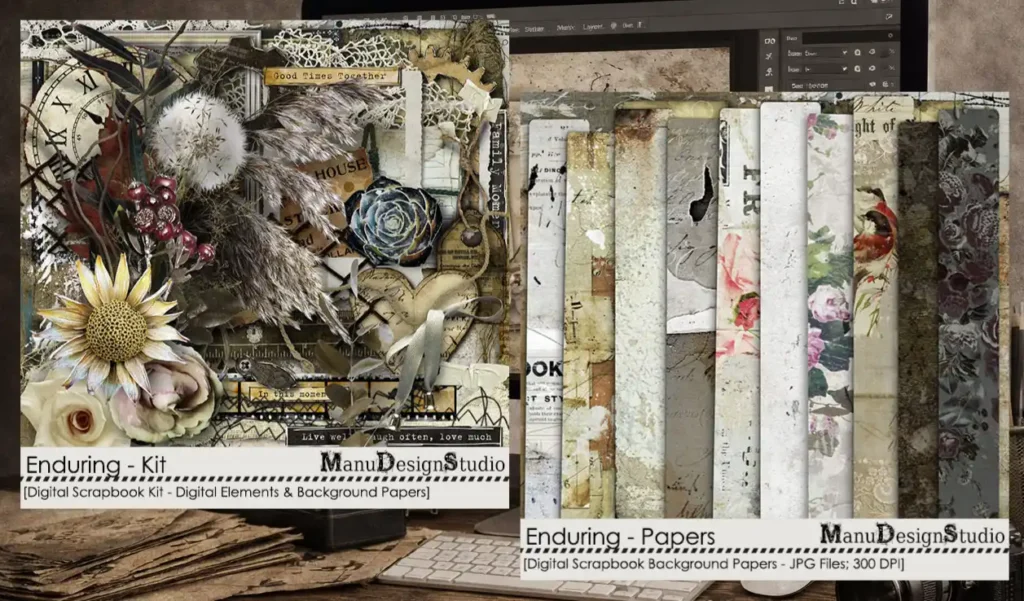
Digital scrapbooking is built around reusable digital design assets. These materials replace physical supplies such as patterned paper, stickers and embellishments used in traditional scrapbooking.
Understanding the difference between kits, papers, elements and templates helps beginners organize files and work more efficiently.
Common digital scrapbooking materials include:
- Digital papers: background textures and patterns
- Elements: decorations such as frames, flowers, labels, and word art
- Scrapbooking kits: coordinated sets combining papers and elements
- Templates: pre-designed layouts with editable layers
These assets are typically provided as PNG, JPG, or layered PSD files and can be reused across multiple projects.
👉 Learn more about digital scrapbooking kits and elements
Ideas & Inspiration for Digital Scrapbooking
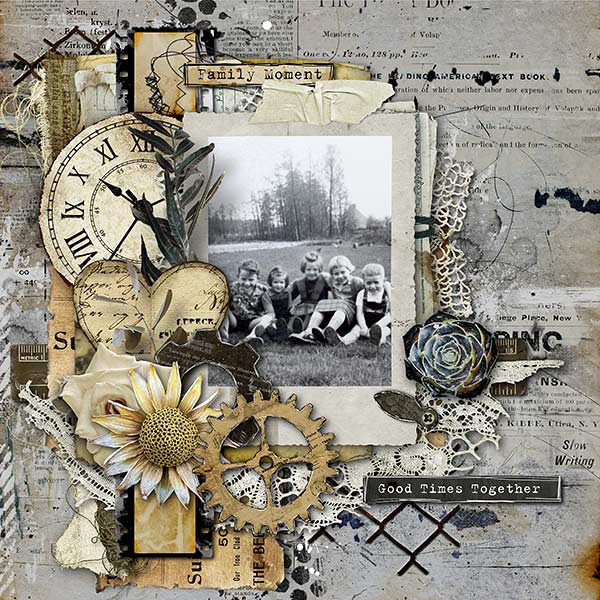
Digital scrapbooking offers a wide range of creative styles and applications. Inspiration helps creators explore different visual directions and discover how digital techniques can be adapted to personal storytelling and design preferences.
This section focuses on creative ideas and design approaches, not technical instructions.
Common inspiration themes include:
- Vintage and distressed scrapbook layouts
- Clean and minimal memory-keeping pages
- Seasonal and themed scrapbook projects
- Hybrid designs combining planners and scrapbook elements
👉 Explore digital scrapbooking ideas and inspiration
FAQ & Common Mistakes
Beginners often face similar questions and challenges when starting with digital scrapbooking. Understanding common mistakes early helps improve workflow efficiency and print results.
This section answers frequently asked questions related to software, file setup, and printing, providing quick clarity without deep technical detail.
Frequently asked questions include:
- Which software is best for beginners?
- Why do printed colors look different from the screen?
- What resolution should I use for printing scrapbook pages?
- Can digital scrapbook pages be reused or resized?
👉 Read frequently asked questions about digital scrapbooking

Digital Scrapbooking Winter Layout – When Creativity Returns
Do you know that feeling… when your thoughts suddenly drift back to something – or someone – from the past?That happened to me just a few evenings ago. I found